
Most migration guides tell you to “audit your current setup” and then move on. That’s the vague advice that gets teams in trouble. Before you migrate analytics tools, you need a concrete, written inventory of every tag firing and every event you track — because you can only rebuild what you know exists. A tag and event inventory audit is the single most useful hour you’ll spend before a migration. Here’s exactly how to do one.
I’ve watched companies migrate, then discover three weeks later that a “lead quality” event their sales team relied on was never rebuilt. Nobody remembered it existed. An inventory audit is how you avoid that — it turns the invisible plumbing of your analytics into a checklist you can actually migrate from.
What an Inventory Audit Covers
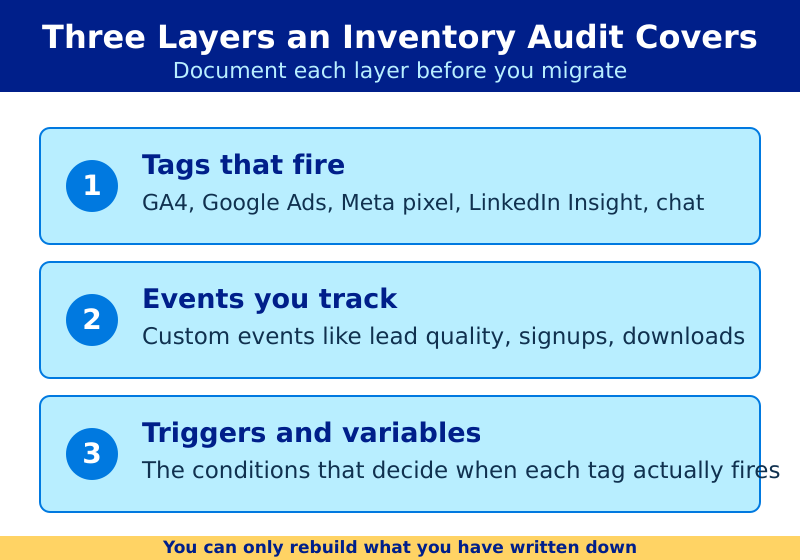
An inventory audit answers one question: what is my current setup actually doing? It documents three layers most teams have never written down:
- Tags — every script and pixel firing on the site, from analytics to ad platforms to chat widgets.
- Events — every tracked interaction beyond a page view: form submits, clicks, scrolls, downloads, purchases.
- Destinations — where each event’s data goes, and who depends on it.
That last layer matters most. An event nobody uses can be dropped. An event your finance team builds reports from must survive the migration intact. Therefore, an inventory isn’t just a list — it’s a record of what’s load-bearing.
If you can’t name every event you track and who relies on it, you’re not ready to migrate. You’re ready to start the inventory.
Step 1: List Every Tag on the Site
Start with what’s firing. You have two reliable methods:
| Method | What It Shows | Best For |
|---|---|---|
| Browser network tab | Live requests to every tracking domain | Confirming what actually fires |
| Tag manager container | Every configured tag, trigger, variable | The complete configured list |
Open your browser’s network tab, filter by your tracking domains, and load several page types. You’ll see requests to Google Analytics, ad platforms, and any third-party scripts. Then cross-reference against your tag manager container, since some tags fire only under specific conditions you might miss browsing manually.
Record each tag’s name, type, and the platform it serves. This list tells you what disappears at migration and what needs a new home.
Step 2: Catalog Every Tracked Event
Events are the part that breaks silently. Open your current analytics tool and list every event it receives. In GA4, the Events report shows every event name with its count. Export it.
For each event, document four things:
- Event name — exactly as it fires, so you can recreate it.
- Trigger — what user action causes it (form submit, button click, page reach).
- Parameters — any data attached, like form name, product ID, or value.
- Frequency — how often it fires, which flags both dead events and critical ones.
For instance, a generate_lead event firing 200 times a month with a value parameter is clearly load-bearing. A scroll_75 event firing thousands of times that nobody reports on is a candidate to drop. As a result, your event catalog doubles as a cleanup list.
Step 3: Map Each Event to Who Uses It
This is where the audit earns its keep. Next to each event, note the human or report that depends on it:
- Sales — lead events, demo requests, qualified-lead signals.
- Marketing — campaign conversions, signup completions, content downloads.
- Finance — purchase events with revenue values.
- Nobody — events that fire but feed no report. These are safe to drop.
Walk this list past each team. You’ll find two things: events everyone assumed were tracked but aren’t, and events firing for years that nobody has ever used. Both findings make your migration cleaner.
Step 4: Decide What Migrates, What Dies, What Changes
With the full picture in hand, assign each tag and event one of three fates:
| Decision | Applies To | Action |
|---|---|---|
| Migrate as-is | Load-bearing events with active users | Rebuild in the new tool, same name |
| Drop | Events no report or person uses | Don’t recreate — reduce clutter |
| Simplify | Over-engineered tracking from GA4 habits | Rebuild leaner in the new tool |
Migration is a rare chance to clean house. Many GA4 setups accumulate years of redundant events — three different “signup” variants, abandoned experiments, half-finished funnels. Don’t port the mess. Rebuild only what earns its place.
Step 5: Turn the Inventory Into a Migration Plan
Your finished inventory becomes the backbone of the migration itself. For each surviving event, you now know its name, trigger, and parameters — which is exactly what you need to recreate it. Privacy-first tools like Plausible, Fathom, and Umami track custom events through a simple JavaScript call, so the rebuild is usually faster than the audit.
Hand the inventory to whoever runs the cutover and the rebuild becomes mechanical: take row one, recreate it, check it off, repeat. Pair this with our analytics migration checklist for the surrounding steps, and use the inventory again during post-migration validation to confirm every event you intended to keep actually fires.
Inventory Audit Template
Keep your audit in a simple spreadsheet with these columns:
| Column | Example |
|---|---|
| Event name | generate_lead |
| Trigger | Contact form submit |
| Parameters | form_name, value |
| Monthly frequency | ~200 |
| Used by | Sales (lead reports) |
| Decision | Migrate as-is |
Bottom Line
You can’t migrate what you can’t see. A tag and event inventory audit makes your entire tracking setup visible — every tag, every event, every person who depends on it. List the tags, catalog the events, map them to their users, and decide what migrates, dies, or gets simplified. The finished spreadsheet turns your migration from a guessing game into a checklist. Spend the hour upfront, and you’ll never discover a missing critical event three weeks too late.