
When people talk about leaving Google Analytics, they focus on the analytics script. They forget the layer underneath: Google Tag Manager. Migrating your GTM container is the part most teams skip — and it’s exactly where conversion tracking, ad pixels, and event firing quietly break. Here’s how to migrate a tag manager container off GA4 without losing the tags that actually matter.
I’ve untangled dozens of containers during migrations. The script swap takes ten minutes. The container audit takes an afternoon. That afternoon is what separates a clean cutover from three weeks of “why did our Meta conversions drop to zero?”
Why Tag Manager Migration Gets Overlooked
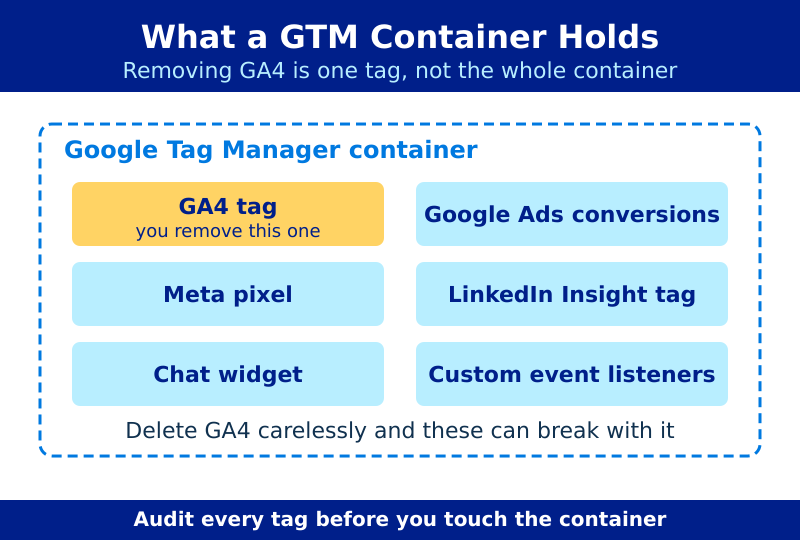
Your analytics tool is one tag. Your container holds many more. A typical GTM setup fires GA4, Google Ads conversions, a Meta pixel, a LinkedIn Insight tag, maybe a chat widget and two custom event listeners. When you remove GA4, those other tags don’t disappear — but the variables, triggers, and data layer pushes feeding them often depend on GA4 plumbing.
For example, many teams route custom events through a single GA4 event tag, then mirror those events to ad platforms. Pull the GA4 tag and the mirror breaks. As a result, your remaining tools stop receiving data even though you never touched them directly.
Warning: Never delete a tag manager container “to start fresh.” You’ll lose every trigger, variable, and version history. Migrate inside the existing container, then publish a clean version.
Step 1: Inventory the Container Before You Touch It
Open your container and list everything. Don’t trust memory. A tag and event inventory audit is the foundation of any safe migration — see our full inventory audit guide for the complete process.
For the container specifically, document three things:
| Element | What to Record | Why It Matters |
|---|---|---|
| Tags | Name, type, which platform it serves | Identifies what survives and what goes |
| Triggers | Event name, conditions, which tags use it | Shared triggers break multiple tags at once |
| Variables | Data layer keys, custom JS, lookup tables | GA4-specific variables become orphans |
Export the container as a JSON file from the admin menu. That export is your rollback. If anything goes wrong, you re-import it and you’re back where you started.
Step 2: Separate GA4-Dependent Tags From Independent Ones
Sort your tags into three buckets:
- Pure GA4 tags — the configuration tag and GA4 event tags. These get removed.
- Independent tags — Meta pixel, LinkedIn tag, chat widgets. These stay, but check their triggers.
- Dependent tags — anything that reads a variable populated by a GA4 tag, or fires on a trigger shared with GA4.
The third bucket is where migrations fail. A Google Ads conversion tag that fires on the same “purchase” trigger as GA4 will keep working — the trigger is independent. But a tag that reads gaSessionId from a GA4-set variable will break. Therefore, trace each dependent tag back to its data source before removing anything.
Step 3: Rebuild the Data Layer for Privacy-First Tools
Most privacy-first analytics tools don’t need a tag manager at all. Plausible, Fathom, and Simple Analytics run from a single first-party script you drop in the page head. That’s the whole point — fewer moving parts.
However, if you rely on GTM to fire ad-platform conversions, keep the container for those. Move your new analytics script out of GTM and into the page directly. This gives you two clean layers:
- Analytics — a single script loaded directly, independent of the container.
- Ad conversions — the slimmed-down container, firing only Meta, Google Ads, and similar.
For custom event tracking, most privacy-first tools accept events through a simple JavaScript call. Plausible’s custom events and Fathom’s event API both work without a tag manager. Consequently, you can retire the GA4 event tags entirely and call events from your own code.
Step 4: Test in Preview Before Publishing
GTM’s preview mode connects to your live site and shows which tags fire on each interaction. Use it before you publish anything. Walk through your key flows:
- Load the homepage — confirm your new analytics script fires and GA4 does not.
- Submit a form — confirm conversion tags still fire on the right trigger.
- Complete a checkout — confirm ad-platform conversions still receive the event.
If a tag that should fire stays silent, the trigger or a variable likely depended on the GA4 tag you removed. Fix the trigger, re-test, then publish.
Step 5: Publish, Then Verify in Production
Preview mode lies occasionally — caching, consent gates, and ad blockers behave differently in the wild. After publishing, verify in production. Open your browser network tab and confirm:
- No requests go to
google-analytics.comoranalytics.google.com. - Your new analytics endpoint receives page views.
- Ad-platform pixels still fire on conversion events.
This production check overlaps with broader post-migration testing. For a complete validation routine, see our guide on validating analytics data after migration.
Common Tag Manager Migration Mistakes
| Mistake | Consequence | Fix |
|---|---|---|
| Deleting the whole container | Lose all triggers and history | Migrate in place, publish a clean version |
| Removing shared triggers | Conversion tags stop firing | Check trigger usage before deleting |
| Leaving orphan variables | Console errors, slow load | Remove variables no tag references |
| Skipping preview mode | Broken tags reach production | Test every key flow before publishing |
Bottom Line
A tag manager migration isn’t about the analytics script — it’s about everything that script touched. Inventory the container first. Separate GA4-dependent tags from independent ones. Move your new analytics out of the container and onto the page directly, then keep a slim container only for ad conversions. Test in preview, verify in production, and keep your JSON export as a rollback.
Do the container work properly and your Google Tag Manager migration becomes a non-event. Skip it, and you’ll spend weeks chasing conversions that quietly stopped reporting the day you flipped the switch.