
You’ve installed the new tool, removed Google Analytics, and the dashboard shows numbers. But are they the right numbers? A migration isn’t finished when data starts flowing — it’s finished when you’ve confirmed that data is complete and accurate. Post-migration validation is the quality-assurance step almost everyone skips, then regrets a month later. Here’s how to validate your analytics data after a migration, before you start trusting it for decisions.
I treat the first two weeks after a cutover as a probation period. The tool reports numbers; my job is to prove those numbers are real. Most validation problems surface in days, not months — if you actually look for them.
Why Validation Matters More Than Setup
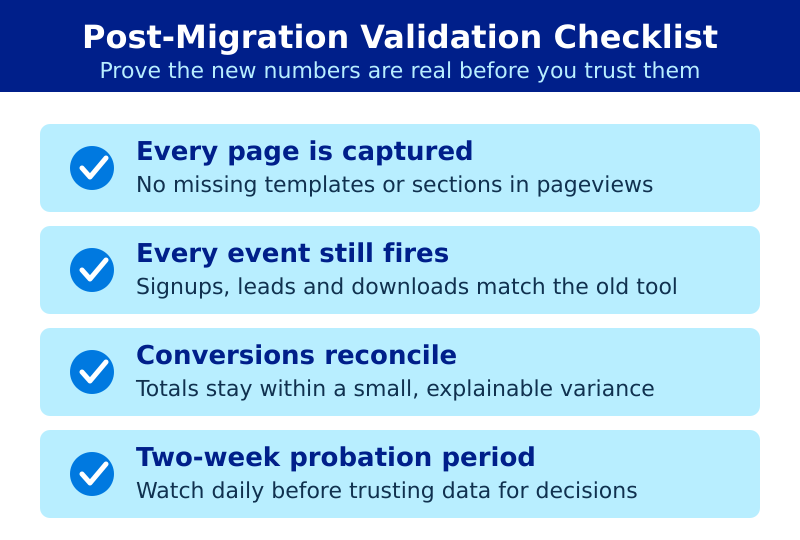
Installing an analytics script is easy. Confirming it captures every page, every event, and every conversion correctly is the hard part. A tool can report confident-looking numbers while silently missing your checkout page, double-counting on a redirect, or attributing all your search traffic to “direct.”
Bad data is worse than no data. No data makes you cautious. Bad data makes you confident and wrong. Therefore, validation isn’t optional polish — it’s the step that decides whether your migration succeeded.
Rule of thumb: Don’t make a single decision from your new analytics until you’ve validated it for at least one full week of normal traffic.
Step 1: Confirm Every Page Is Tracked
The most common migration failure is a missing script. A new template, a checkout flow on a subdomain, or a landing page built outside your CMS can all ship without the analytics tag.
Build a coverage checklist from your sitemap:
| Page Type | How to Check | Common Gap |
|---|---|---|
| Homepage and core pages | Open network tab, confirm a tracking request | Rarely missed |
| Blog and content pages | Check a sample across templates | One template lacks the tag |
| Checkout / thank-you pages | Complete a test purchase | Often on a separate system |
| Subdomains and microsites | Visit each, check the request | Frequently forgotten entirely |
For each page type, open your browser’s network tab, load the page, and confirm a request goes to your analytics endpoint. If a page type is missing, your numbers are already incomplete. Add the script and re-check.
Step 2: Verify Events and Conversions Fire
Page views are the easy part. Events are where migrations quietly break, because event tracking rarely transfers automatically between tools. A “newsletter signup” event in GA4 doesn’t exist in your new tool until you rebuild it.
Walk through every tracked action manually:
- Submit each important form and confirm the event appears in your new tool’s real-time view.
- Trigger any custom events — button clicks, downloads, video plays — and verify each one.
- Complete a full conversion flow end to end, then confirm the conversion registers.
Use the real-time or live view while you test. As a result, you’ll see within seconds whether an event fired. If it doesn’t appear, the event wasn’t migrated. Our event tracking guide covers how to set up events correctly in a privacy-first tool.
Step 3: Sanity-Check Traffic Sources
Attribution breaks easily in migration. A misconfigured tool can dump everything into “direct,” strip UTM parameters, or misclassify search traffic. Compare your new source breakdown against what you’d expect:
- Direct traffic over 50%? Likely an attribution or referrer problem. Healthy sites usually sit well below that.
- No organic search? Search Console can’t talk to the tool, or referrers are being stripped.
- Campaign traffic missing? Your UTM parameters aren’t being read.
If campaigns look wrong, revisit your tagging. Our UTM tracking guide walks through campaign tracking in privacy-first tools. For example, a sudden spike in “direct” traffic almost always means referrer data isn’t passing through correctly.
Step 4: Reconcile Against a Known Baseline
If you ran a parallel period — and you should have — you already have a comparison baseline. Pull the overlapping days where both tools collected data and check the ratio holds. A stable ratio means the new tool behaves predictably. A wildly different ratio means something changed during the cutover.
No parallel data? Use proxy baselines instead:
| Baseline Source | What It Confirms |
|---|---|
| Search Console clicks | Organic traffic volume is plausible |
| Server access logs | Raw request count vs. tracked visits |
| Ad platform clicks | Paid traffic actually arrives and tracks |
| Email send reports | Campaign clicks match tracked sessions |
Server logs are especially honest — they record every request before any script or ad blocker interferes. Comparing tracked visits against log hits tells you roughly how much the tool captures.
Step 5: Watch for a Week, Then Sign Off
Single-day checks miss patterns. Let the tool run for a full week and watch for anomalies:
- A weekday with suspiciously zero traffic — a script that fails under load or behind a cache.
- Conversions that appear some days and vanish on others — an intermittent event problem.
- A page that should be popular showing nothing — a tracking gap you missed in Step 1.
Once a full week passes with consistent, plausible numbers across pages, events, sources, and your baseline, the migration is validated. Now you can trust the data. Document what you checked so the next person — or future you — knows the numbers earned their trust.
Validation Checklist
| Check | Pass Condition |
|---|---|
| Page coverage | Every page type fires a tracking request |
| Events | Each tracked action appears in real-time view |
| Conversions | Full conversion flow registers end to end |
| Traffic sources | Direct under 50%, organic and campaigns present |
| Baseline | Numbers reconcile with logs or parallel data |
| One-week stability | No unexplained gaps or spikes |
Bottom Line
A migration ends with validation, not installation. Confirm every page type is tracked. Manually fire every event and conversion. Sanity-check your traffic sources, reconcile against server logs or parallel data, then watch for a full week before you trust a single number. The hour you spend validating saves the month you’d otherwise spend explaining why last quarter’s data can’t be trusted. Validate first, decide second.