
The question that stalls more migrations than any technical problem: what happens to the years of history sitting in Google Analytics once we leave? Nobody wants to be the person who deleted four years of traffic data because a new tool looked nicer.
The honest answer is that your history does not travel with you. No privacy-first tool can import GA4’s past — the data models are different, and the raw events were never yours to move in the first place. What you can do is take a copy before you go, and the copy is worth far less effort than most people fear once you know which three routes exist.
Your History Has an Expiry Date Already
Before planning an export, check what you still have. GA4 does not keep event-level data forever, and the default is shorter than most people assume.
Standard properties offer two retention options for user and event data: 2 months or 14 months. The 360 tier extends that to 26, 38 or 50 months. Once the window closes, Google deletes the data on a monthly cycle, and a report with a date range longer than your retention setting simply returns nothing for the extra days.
That matters for a reason that catches people out: if your property is still on the 2-month default, the “four years of history” you are worried about losing does not exist at event level. What survives beyond the window are the aggregated standard reports, which are exactly what you can export from the interface.
Open Admin, find data retention in the data collection settings, and read what it says before anything else. It reframes the whole conversation.
Three Routes for Getting Data Out
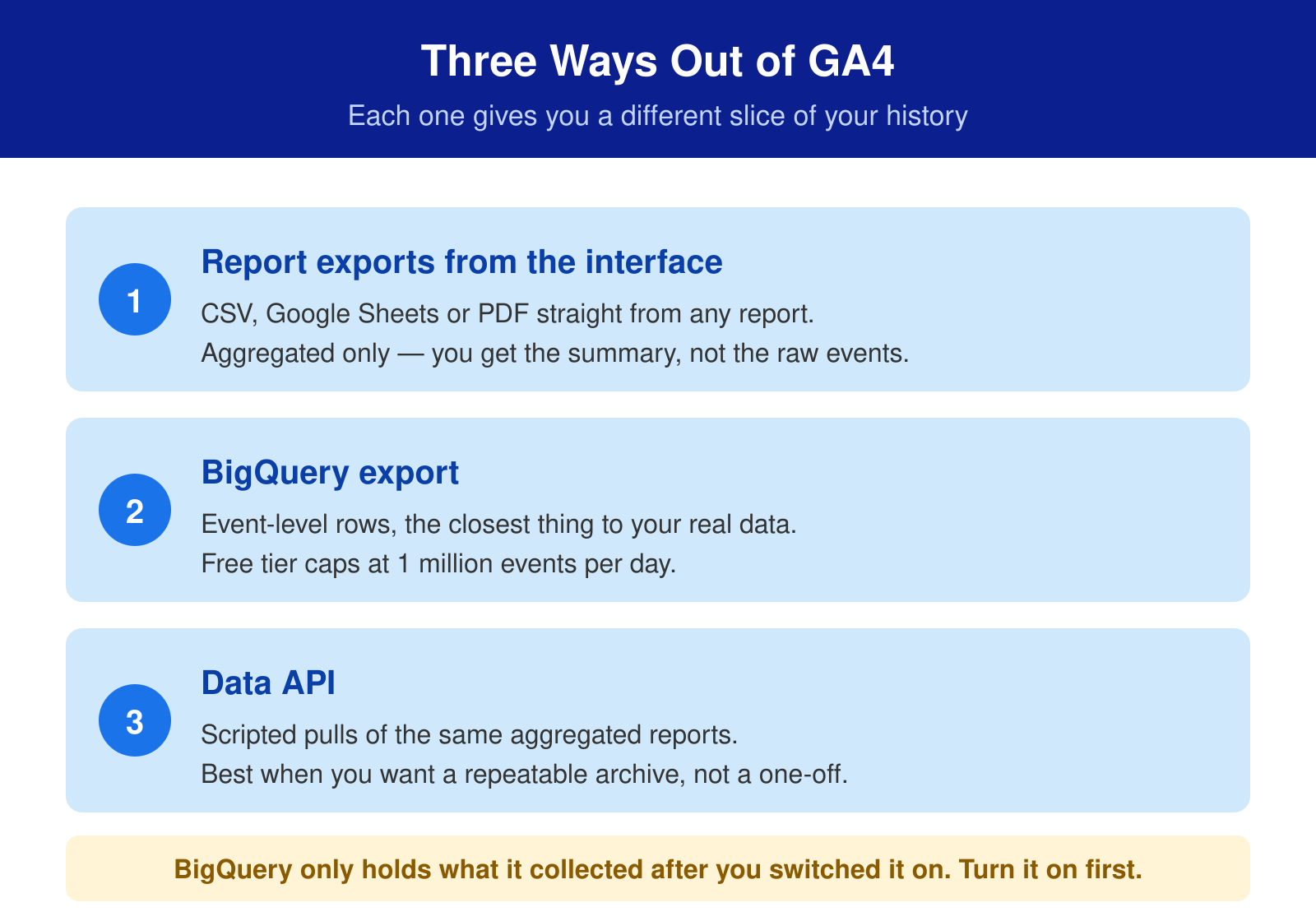
Report exports are the simplest and cover most needs. Any GA4 report has a share and download control offering CSV, Google Sheets or PDF. What you get is aggregated: sessions by channel, users by month, top pages, conversions by source. That is what a business actually looks back at a year later, and it takes an afternoon to pull the dozen views you care about.
BigQuery export is the only route to event-level rows — one line per event, with parameters intact. It is free to link, and standard properties have a daily export limit of one million events. The catch is timing: BigQuery holds only what it collected after you switched the link on. It is not retroactive, so if you have not linked it yet, it will not rescue last year.
The Data API pulls the same aggregated reports as the interface, but scripted. It earns its place when you want a repeatable archive — a monthly job dropping CSVs somewhere — rather than a one-time snapshot before a cutover.
What to Pull
The instinct is to export everything. Resist it, because a folder of 200 unlabelled CSVs is not an archive, it is a landfill you will never open.
Think about the questions you will ask in two years. Almost always they are about long-run trends and the odd historical comparison, not about which button a specific user clicked in March. That narrows the list considerably.
- Monthly traffic by channel for the full retained period. This is the backbone of every “how were we doing before” conversation.
- Top pages by year. Which content earned the traffic, so a future content decision has evidence behind it.
- Conversions by source and month. The commercial spine of the archive, and the hardest thing to reconstruct later.
- Landing pages for your biggest campaigns. Only the campaigns that mattered — nobody needs the 2024 newsletter test.
- Geography and device split at annual granularity, which is usually enough for a trend nobody revisits monthly.
Pull each as CSV with a consistent file name that includes the date range, drop them in one folder, and write a two-line readme saying what was exported and when. That readme is what makes it an archive rather than a pile.
Take a Baseline You Can Compare Against
There is a second reason to export before you switch, separate from nostalgia: you need something to validate the new tool against.
Any migration produces different numbers. Privacy-first tools count sessions differently, ignore bots differently, and do not follow users across visits the same way. Without a baseline, you cannot tell an expected discrepancy from a broken installation.
Export the last full month before cutover at the level of detail you will compare: sessions, users, pageviews for your top twenty pages, plus conversions. Keep it somewhere you will find it in three weeks. That single file turns “the numbers look low” into an answerable question, which is the whole point of post-migration validation.
Running both tools side by side for a few weeks makes that comparison sharper still — the mechanics are covered in the guide to running two analytics tools in parallel.
Rule of thumb: Export the last full month at page level before you touch anything. It costs twenty minutes and it is the only evidence you will have when the new numbers look wrong.
Do This Before You Delete Anything
Leave the GA4 property in place for a while after the switch. There is no cost to keeping it, the tag can come off the site while the property stays, and the reports remain readable for as long as retention allows. Deleting a property is irreversible and there is no reason to rush it.
Start with the retention setting this week, then pull the five report exports above. If your property is on 14 months and you want event-level detail preserved, link BigQuery now — every day you wait is a day of raw events that will not be in the archive. Once that is done, the rest of the migration checklist has nothing left in it that can lose you data.